

User interface
This page names the parts of the KLSTR.ctrl main window and says what each one is for, so the rest of the guide can refer to them. For a guided first look, see Tour KLSTR.ctrl in demo mode.
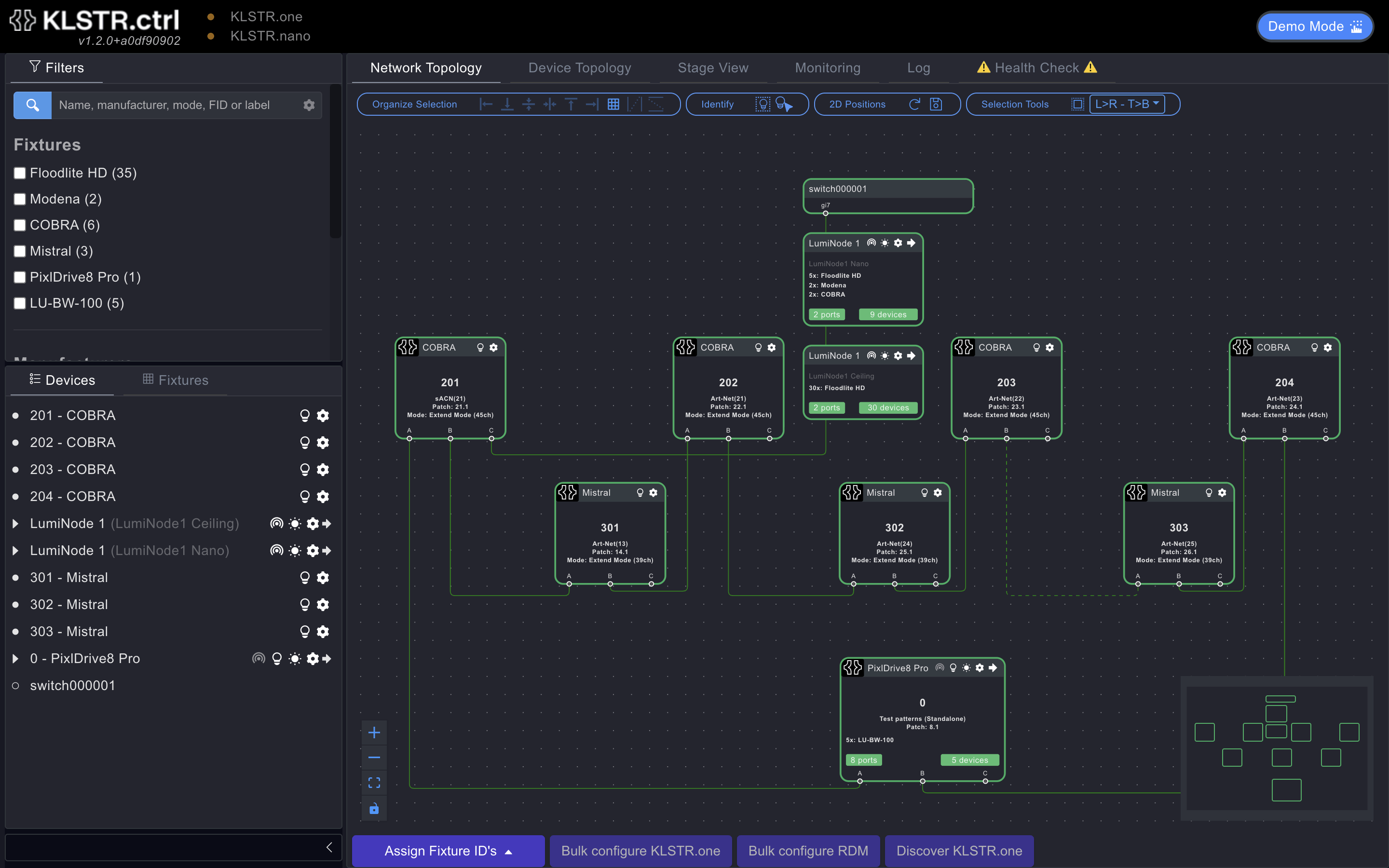
From top to bottom and left to right, the window has:
- the , with the connection status and the ;
- the ;
- the on the left;
- the view of the open tab, which for the two topology tabs has a above and below it.
appear at the top right, and open in the middle of the window. The menus are described on the Menus page.
Header
The header shows the KLSTR.ctrl logo with the version number under it, and the status of the two connections KLSTR.ctrl keeps to your network:
- KLSTR.one: the connection to KLSTR.one devices, over the KLSTR protocol (IPv6 link-local).
- KLSTR.nano: the Art-Net connection, used for Art-Net nodes and the RDM devices behind them, KLSTR.nano modules included.

The dot in front of each label shows the state of that connection:
| Dot | Meaning |
|---|---|
| Red | No network interface selected for this connection |
| Orange | An interface is selected but the connection is not up (for example the cable is unplugged), or a demo rig is loaded for it |
| Green | The interface is up and KLSTR.ctrl is connected |
Hover a label to see the interface it uses and its addresses, or DEMO MODE. Click it to open the interface dialog for that connection. See Connect KLSTR.ctrl to your network.
While KLSTR.ctrl is busy sending requests to KLSTR.one devices, a spinner turns next to KLSTR.one. Its tooltip counts the requests, for example Active comm: 2/5 (pending/waiting).
Mode switch
At the right end of the header, the mode switch shows Build Mode and Live Mode. The active mode is coloured: green for Build mode, red for Live mode.

- Build Mode is for setting up: everything can be changed.
- Live Mode is for the show. It locks the actions that could disturb a running rig, such as Assign Fixture ID's and Patch Fixtures, and it shows warnings about devices going offline and sensor alerts as messages that stay until you close them. It does not lock everything: menu commands and most of the Device Configuration window still work.
While a demo rig is loaded, the switch is replaced by a single Demo Mode button: click it to leave demo mode. See Switch between Build and Live mode.
Main tabs
| Tab | What it shows | See |
|---|---|---|
| Network Topology | Every networked device (KLSTR.one fixtures, Art-Net nodes, switches) and the network links between them | Navigate the topology views |
| Device Topology | Every device with its ports, and the fixtures behind each port | Navigate the topology views |
| Stage View | The fixtures in 3D, for example from an MVR file. It opens only once there are devices | Position fixtures in Stage View |
| Monitoring | Sensor readings (the Sensors view, Advanced Sensors) and eDMX statistics (statistics) | Monitor sensors |
| Log | What KLSTR.ctrl did and what the devices reported | Read the log |
| Health Check | Problems KLSTR.ctrl found in the rig. The tab title gets a ⚠️ on both sides while there are any | Run a health check |

Sidebar
The sidebar on the left lists the devices and helps you find them. Its top pane holds the Filters; the pane below has two tabs, Devices (a tree of the root devices and the devices behind them) and Fixtures (a table of the fixtures). Clicking a device in either selects it in the topology.
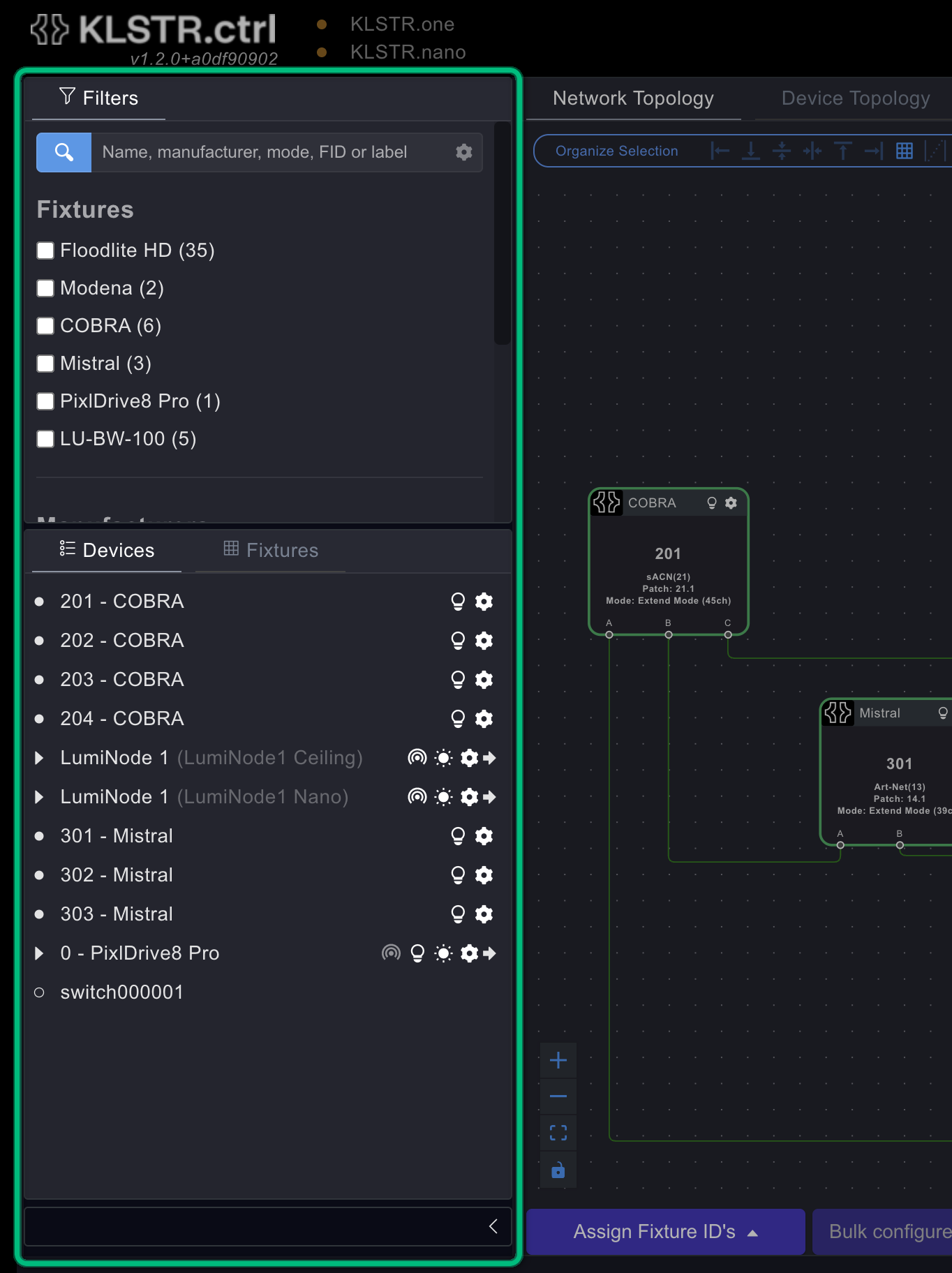
- Drag the divider between the sidebar and the view to make the sidebar wider or narrower. KLSTR.ctrl remembers the width.
- Drag the line between the two panes to give the filters more or less room.
- Click the arrow at the bottom of the sidebar to fold it to a narrow strip, and again to open it.
See Find devices with the sidebar.
Toolbars
The Network Topology and Device Topology tabs each have a toolbar above the view and one below it.
The toolbar above the view arranges and identifies what you selected. It has four groups:
| Group | What it holds | See |
|---|---|---|
| Organize Selection | Align and distribute the selected nodes, and Auto distribute | Arrange nodes |
| Identify | toggle identify for the selection, and identify on hover | Identify devices |
| 2D Positions | Load positions and Save positions | Arrange nodes |
| Selection Tools | Select All and the Selection Orientation menu | Select devices |

The toolbar below the view holds the actions that configure devices:
| Button | Where | What it does | See |
|---|---|---|---|
| Assign Fixture ID's | Both tabs | Opens the Fixture ID assignment panel | Assign Fixture IDs |
| Patch Fixtures | Device Topology | Opens the patch panel for fixtures with a KLSTR.nano | Patch fixtures |
| Bulk configure KLSTR.one | Both tabs, with KLSTR.one devices selected | Configures the selected KLSTR.one devices in one go | Bulk-configure KLSTR.one devices |
| Bulk configure RDM | Both tabs, with RDM devices selected | Configures the selected RDM devices in one go | Bulk-configure RDM devices |
| Discover Art-Net | Both tabs, only with Manual ArtPoll on | Hold it to look for Art-Net nodes once | Settings: Network |

Assign Fixture ID's and Patch Fixtures are dimmed in Live mode.
Messages
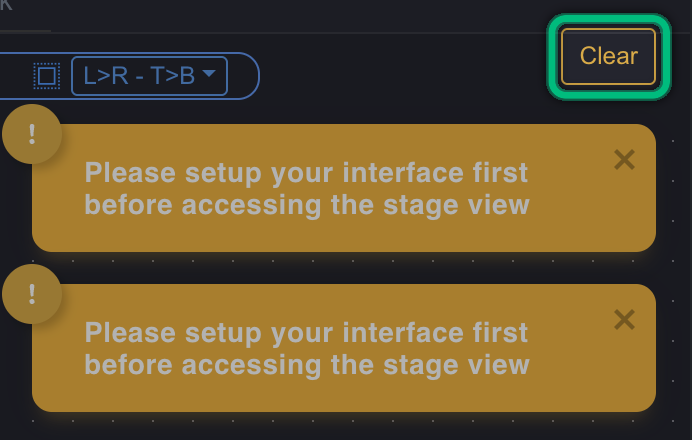
Short messages (toasts) appear at the top right of the window, for example when something worked, when a command found nothing to do, or when a device needs attention.
- An ordinary message closes by itself after about six seconds. Click its × to close it earlier.
- In Live mode, warnings about devices going offline and sensor alerts stay until you close them.
- While more than one message is open, a Clear button above them closes them all.
Warnings about devices and sensor alerts are also written to the Log tab, so you can read them there later.
Dialogs
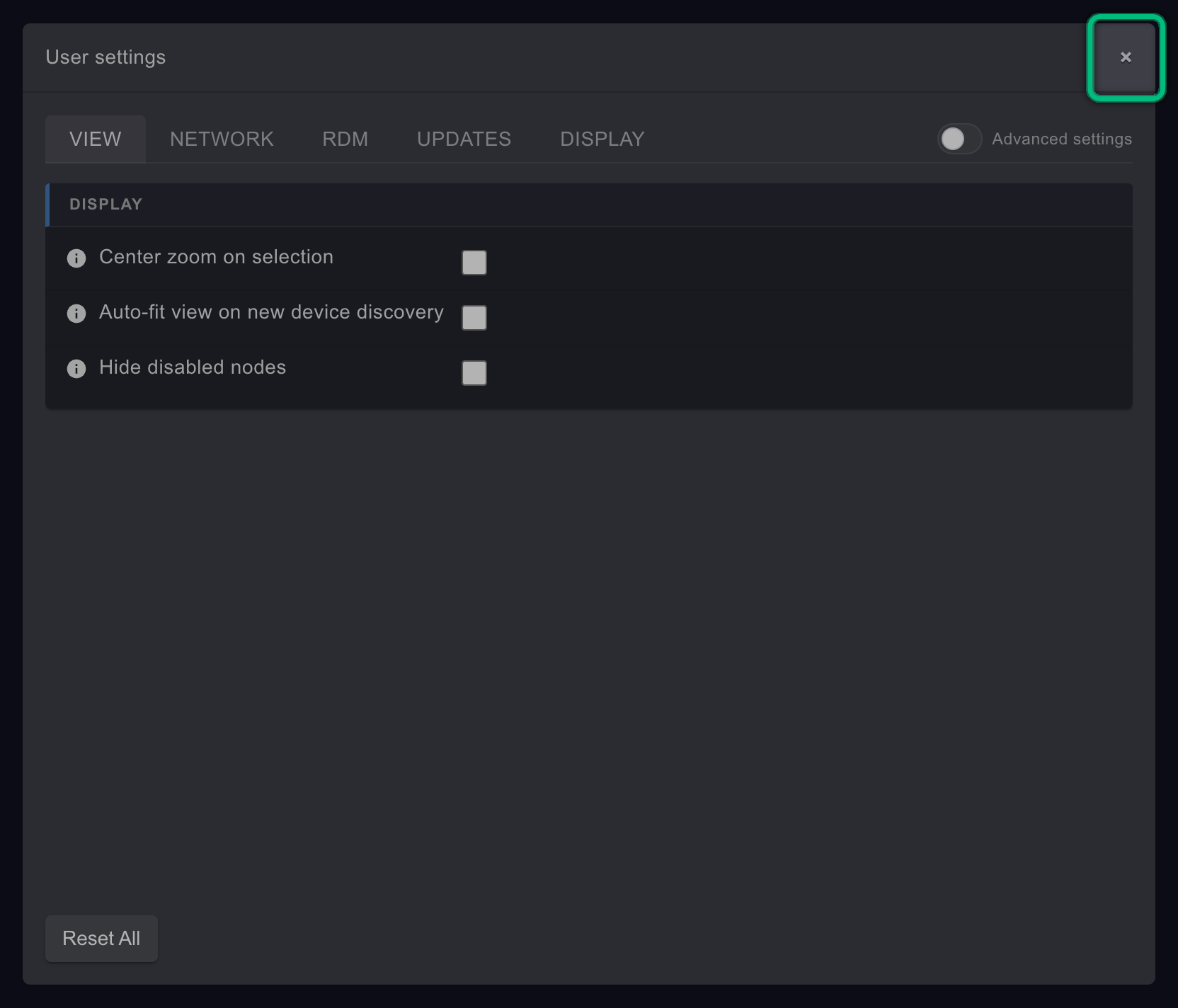
Settings, configuration and most commands open in a dialog in the middle of the window, for example User settings or the Device Configuration window. One dialog is open at a time; a help window opened from inside a dialog sits on top of it. Close a dialog with the × in its top-right corner.
Some dialogs also open by themselves:
- A notice from KLSTR when KLSTR.ctrl starts, if KLSTR has published one.
- Intel build on Apple Silicon, when you run the Intel version of KLSTR.ctrl on a Mac with Apple silicon. Click Download Apple Silicon version and replace the app: the Intel version is much slower there.
Related
Written for KLSTR.ctrl 1.2.0 (a0df909) · Checked 1 Oct 2026