

Settings: View
The User settings window holds the preferences that apply to your copy of KLSTR.ctrl on this computer: how the topology views behave, how KLSTR.ctrl talks to Art-Net nodes and RDM fixtures, updates, and what the device boxes show. This page explains the window itself and the settings on its VIEW tab. The other tabs have their own pages: NETWORK, RDM, UPDATES and DISPLAY.
The User settings window
Open it with KLSTR › User Settings. The shortcut is Cmd , on macOS and Ctrl Shift U on Windows.
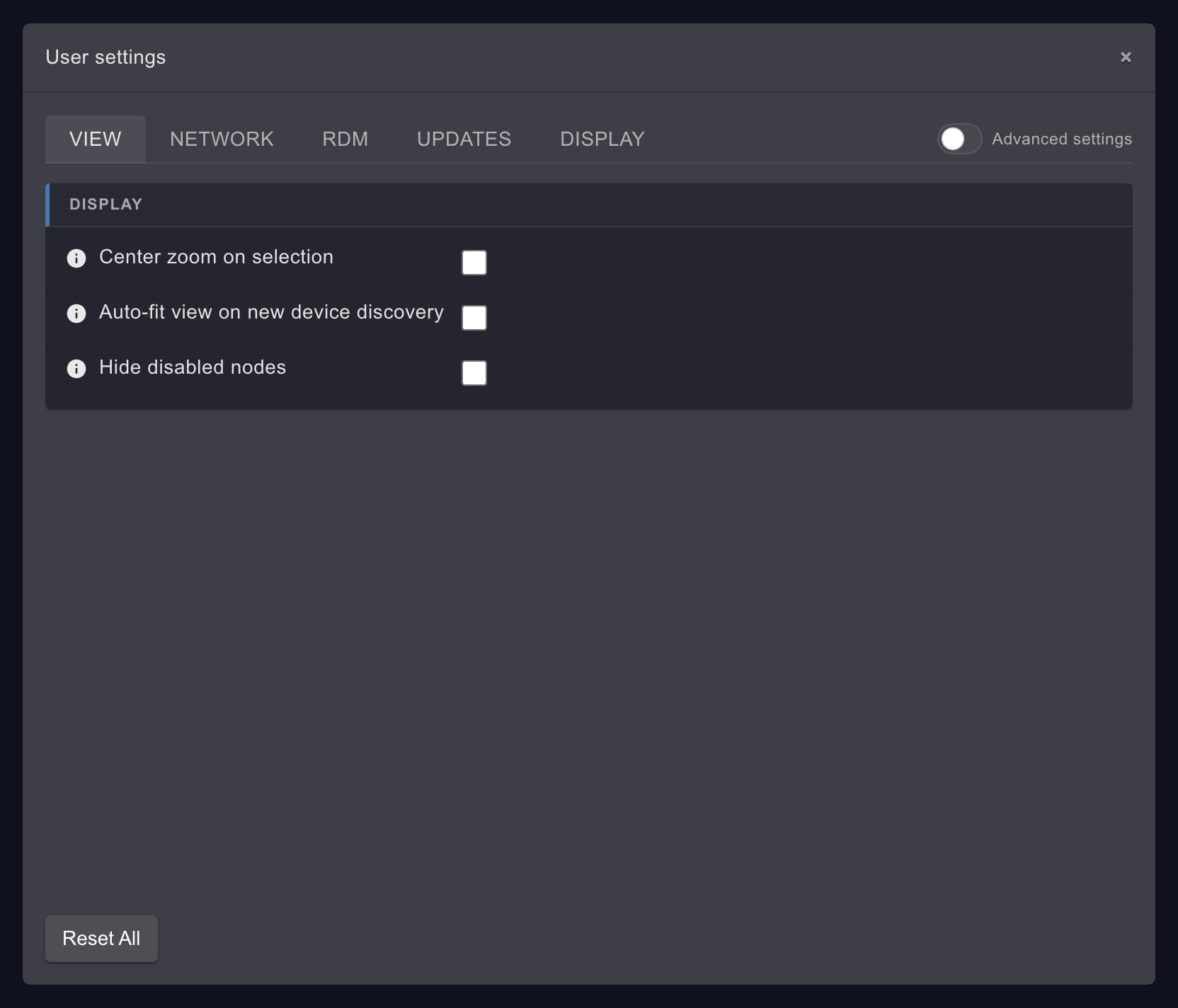
- Tabs. VIEW, NETWORK, RDM, UPDATES and DISPLAY. Each tab groups its settings in cards with a heading, for example DISPLAY or ART-NET.
- Info icon. Hover the i in front of a setting to read a short description.
- Saved straight away. Every change applies and is saved the moment you make it. There is no Save or Cancel button. Close the window with the × in its top-right corner or with Esc.
- reset. A number field has a reset button next to it that puts back its default. It is dimmed while the field already holds the default. Checkboxes have no reset button.
- Reset All. The button at the bottom left puts every setting on every tab back to its default at once, without asking. That includes the DISPLAY tab and the Advanced settings switch. It also makes KLSTR.ctrl forget the network interfaces you chose to remember, so the next time you start it you select them again. Because Auto-delete old firmware is on by default, it also deletes cached firmware older than the latest release (see Settings: Updates).
Advanced settings
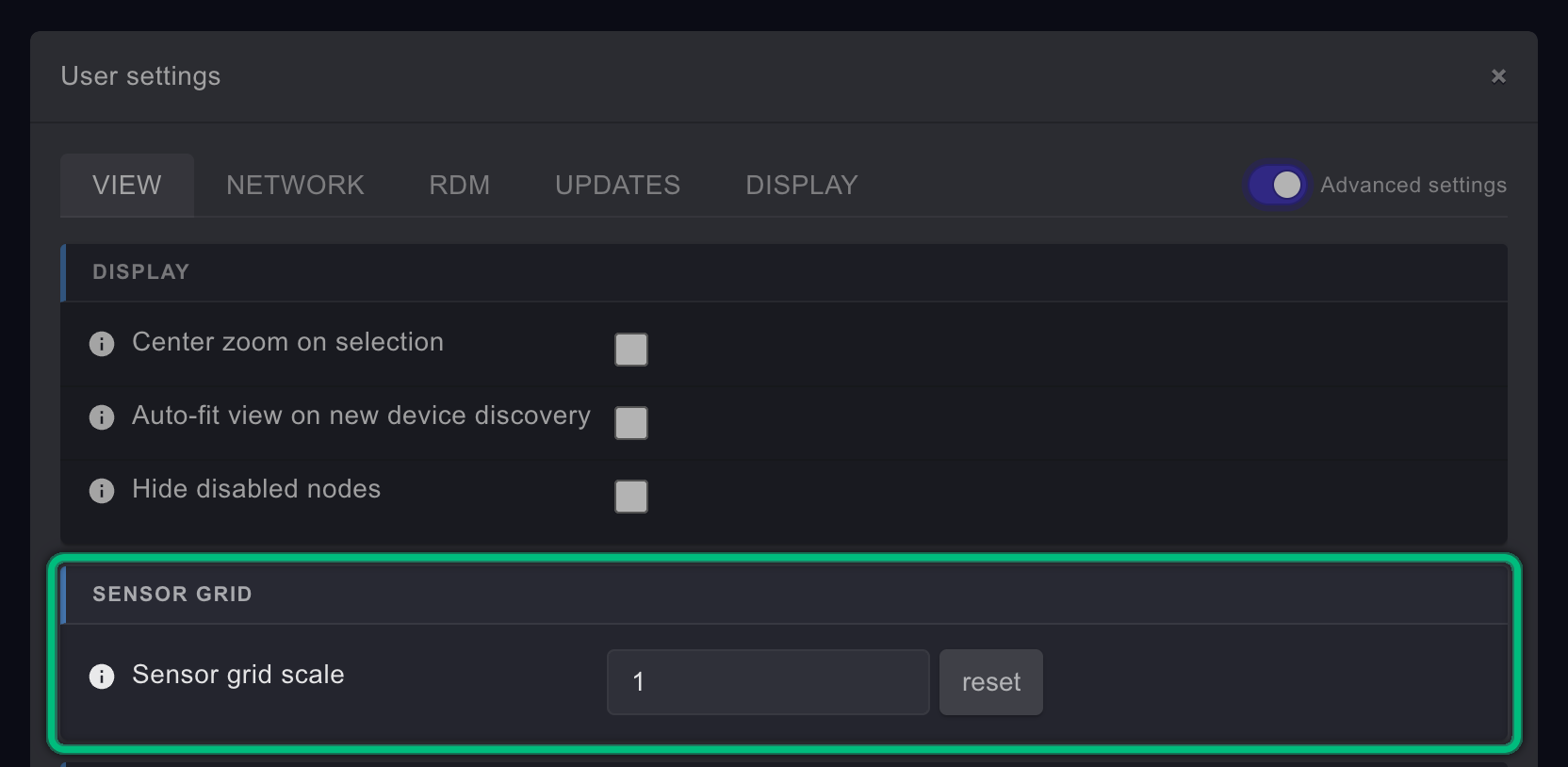
Some settings are folded away because you rarely need them. Switch on Advanced settings at the right end of the tab row to show them. The switch works for all tabs at once, and KLSTR.ctrl remembers it the next time you open the window. On the settings pages of this guide, these settings are marked Advanced.

Where the settings are stored
KLSTR.ctrl keeps the settings in a file called settings.json, in a KLSTR folder of your
user account: ~/Library/Application Support/KLSTR/ on macOS and %APPDATA%\KLSTR\ on
Windows. Each user account on a computer has its own settings. You don't need to edit the file;
use the window instead.
VIEW tab
| Setting | What it does | Default | When to change it |
|---|---|---|---|
| Center zoom on selection | Every time you select a different set of devices, the topology view pans and zooms to fit them. It waits until you finish a drag selection, and it only moves the tab you are looking at | Off | Switch it on when you mostly select devices from the sidebar or with the FID command line and want the view to follow. Leave it off if you like to keep the view where you put it |
| Auto-fit view on new device discovery | Once KLSTR.ctrl knows at least 20 devices, it fits the view to the whole rig every time a new device is found | Off | Switch it on while you discover a large rig, so new devices don't land off screen. Switch it off once the rig is complete if the view jumps when devices drop out and come back |
| Hide disabled nodes | Removes the Art-Net nodes you disabled from the topology and from the device list, instead of showing them greyed out | Off | Switch it on when you disabled nodes that don't belong to your rig (for example nodes of another department on the same network) and don't want to see them at all. See Disable and hide Art-Net nodes |
| Sensor grid scale (Advanced, card SENSOR GRID) | Scales the columns and tiles of the Advanced Sensors grid. 1 is 100 %. The Advanced Sensors toolbar has a slider for the same setting, from 25 % to 150 % | 1 | Use the slider in the Advanced Sensors view first. Type a value here only to get back to a known size. See Monitor sensors |
Related
Written for KLSTR.ctrl 1.2.0 (a0df909) · Checked 1 Oct 2026