

Lock a device with a PIN
This page is an annex: the RDM lock is available only on devices that support it (ANSI E1.37-1 LOCK_STATE and LOCK_PIN), and many fixtures don't.
Some RDM fixtures can lock parts of their own configuration, for example the DMX start address or the personality, so that nobody changes them by accident from a console or the fixture's menu. This is the RDM lock from ANSI E1.37-1: the fixture lists the lock states it offers (LOCK_STATE_DESCRIPTION), and a four-digit PIN guards every change of state. KLSTR.ctrl shows these controls on the Security tab of the fixture's device configuration, but only for fixtures that support them.
Before you start
- Art-Net interface selected and RDM discovery done, so the fixture shows in the topology. See Discover devices.
- A fixture that supports the RDM lock. If its device configuration has no SECURITY group in the sidebar, the fixture doesn't report LOCK_STATE.
- Write down the new PIN before you change it. When the fixture reports its PIN, KLSTR.ctrl shows it in plain text to anyone who opens the window; when it doesn't, nothing in KLSTR.ctrl tells you the PIN.
Lock or unlock the fixture
Open the Security tab
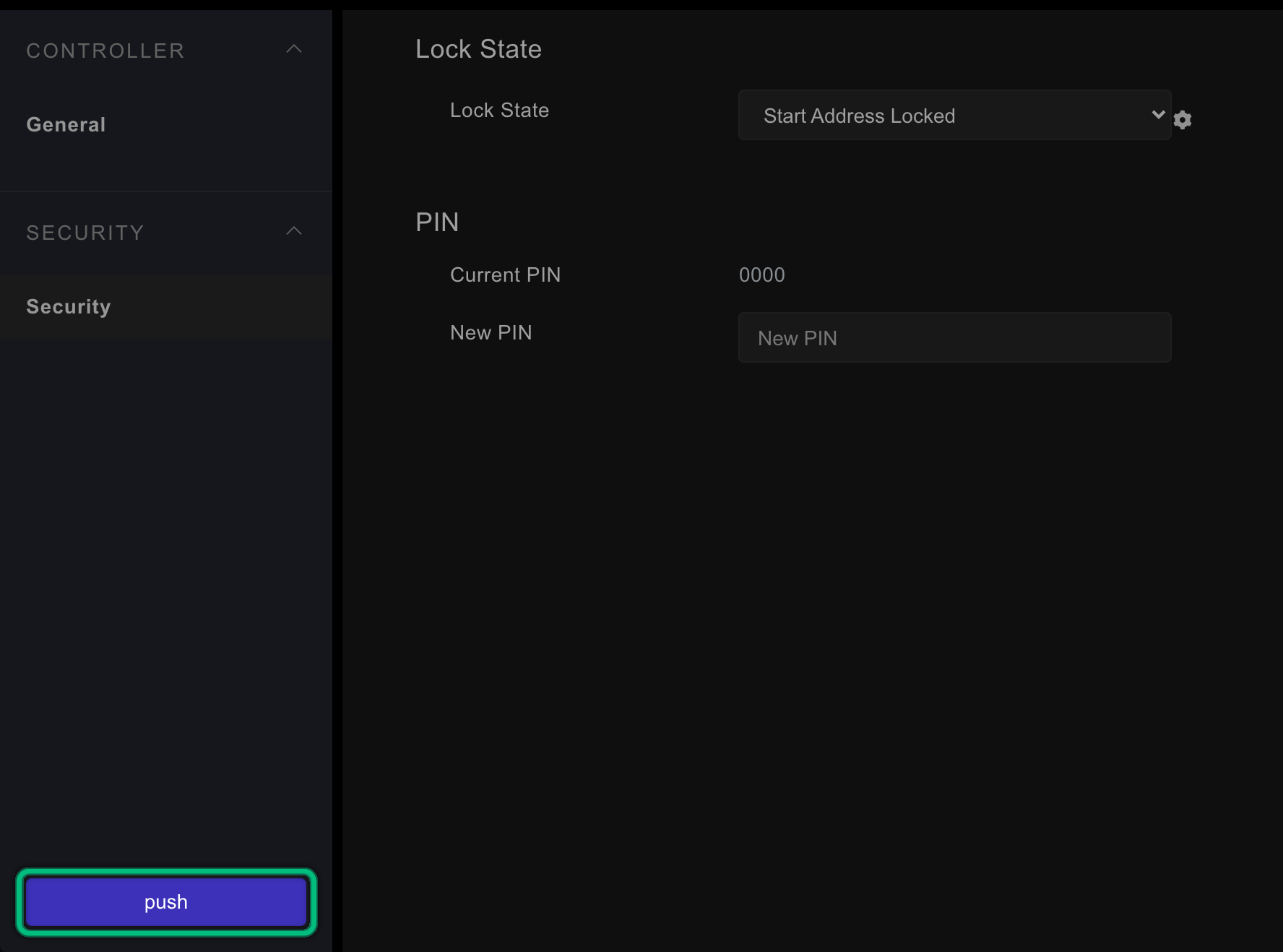
Open the fixture's device configuration: click the cog (Device settings) on the fixture in the topology, or right-click it. Click Security in the sidebar, under SECURITY.
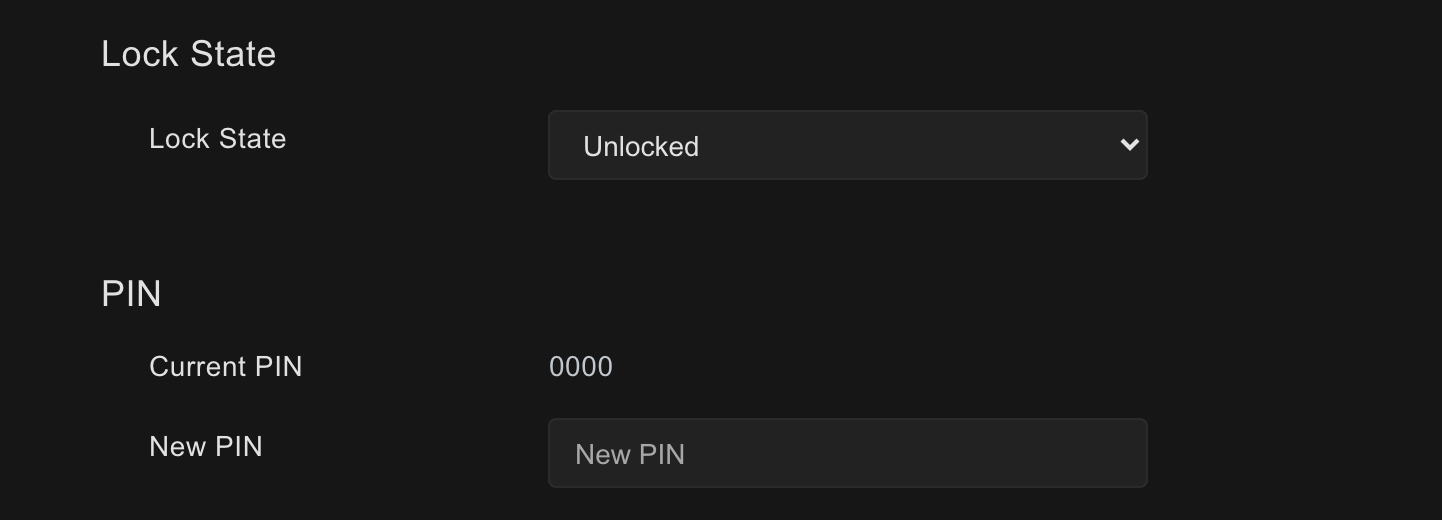
The tab shows two cards: Lock State, with the fixture's current state, and PIN, with Current PIN and New PIN.
Choose the lock state
Pick a state in the Lock State dropdown. Unlocked releases the lock; the other entries are the states the fixture offers, for example Start Address Locked or Address and Personalities Locked.

You don't type the PIN to lock or unlock. KLSTR.ctrl sends the PIN the fixture reported in Current PIN along with the new state.
Push the change
A cog icon appears next to the dropdown: hover it to see the old and the new state. Nothing is sent yet. Click push at the bottom of the sidebar to send the new state to the fixture.
Change the PIN
Type the new PIN
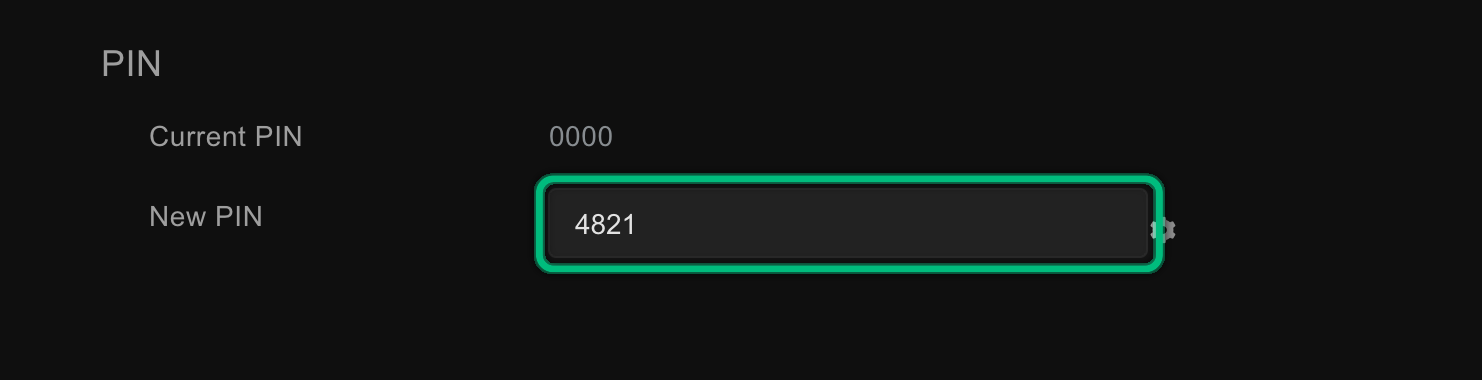
On the Security tab, type a number from 0 to 9999 in New PIN. Current PIN shows the PIN the fixture reports now; KLSTR.ctrl sends it along to authorise the change.
Push the change
Click push at the bottom of the sidebar.
Check the result
Close the device configuration and open it again. Current PIN shows the new PIN once KLSTR.ctrl has read it back from the fixture.
What you should see
- After push, the cog icon next to the field disappears, and the field shows the value the fixture reports.
- After a lock, changes to the locked settings fail. In KLSTR.ctrl such a change ends with an RDM SET NACK error in the log, and the field goes back to the fixture's value.
If something goes wrong
| What you see | Likely cause | What to do |
|---|---|---|
| No Security tab | The fixture doesn't support the RDM lock (no LOCK_STATE) | Use the fixture's own menu or software |
| A Lock State card but no PIN card | The fixture doesn't report its PIN (no LOCK_PIN). KLSTR.ctrl then has no PIN to send with a new state, so the change is not sent at all | Lock or unlock the fixture from its own menu |
| The lock state doesn't change after push, and the log shows an RDM SET NACK | The fixture refused the PIN or the state | Check Current PIN. Close and reopen the window to read it again, and retry |
| RDM SET timeout in the log | The fixture didn't answer | Check the DMX line and the node, and try again. See RDM data or sensors missing |
| push stays dimmed | Nothing is staged: the value you picked is the one the fixture already has | Pick a different value |
| A setting on another tab won't change any more | The fixture is locked | Unlock it on the Security tab, make the change, and lock it again |
Related
Written for KLSTR.ctrl 1.2.0 (a0df909) · Checked 1 Oct 2026