

Connect KLSTR.ctrl to your network
KLSTR.ctrl uses two separate connections, each on a network interface of your computer that you choose:
- KLSTR.one fixtures talk the KLSTR protocol over IPv6 link-local addresses. The
interface needs an IPv6 link-local address (one starting with
fe80::). It doesn't need an IPv4 address or a DHCP server. - Art-Net nodes, and the RDM fixtures and KLSTR.nano modules behind them, are reached over Art-Net on IPv4. The interface needs an IPv4 address in the same range as your nodes.
You can use the same interface for both, or a different one for each. This is the last step of the getting-started tutorial: once it is done, your devices start to appear.
Before you start
- Computer cabled to the lighting network. Connect the Ethernet port, or adapter, to the switch or the first KLSTR.one fixture.
- For Art-Net: an IPv4 address on that interface in your nodes' range, for example
2.x.x.xor10.x.x.xwith the right subnet mask. Set it in the network settings of your operating system. - For KLSTR.one: IPv6 switched on for that interface. If it isn't, KLSTR.ctrl can switch it on for you (step 3).
- Administrator password at hand if you need to switch IPv6 on.
Select the KLSTR.one interface
Open the interface dialog
Click KLSTR.one in the header, or choose KLSTR.one › Select interface (press Cmd Shift I on macOS, Ctrl Shift I on Windows). The interface dialog opens with the line If you have KLSTR devices connected, we'll find them pretty soon.

Find your interface in the list
The list shows your computer's interfaces by their system name, followed by their friendly
name where the system has one, for example en7: USB 10/100/1000 LAN. Interfaces that can
carry KLSTR.one traffic are listed under With IPv6 link-local address, below the yellow
DEMO entry. Hover over an interface to see its addresses.
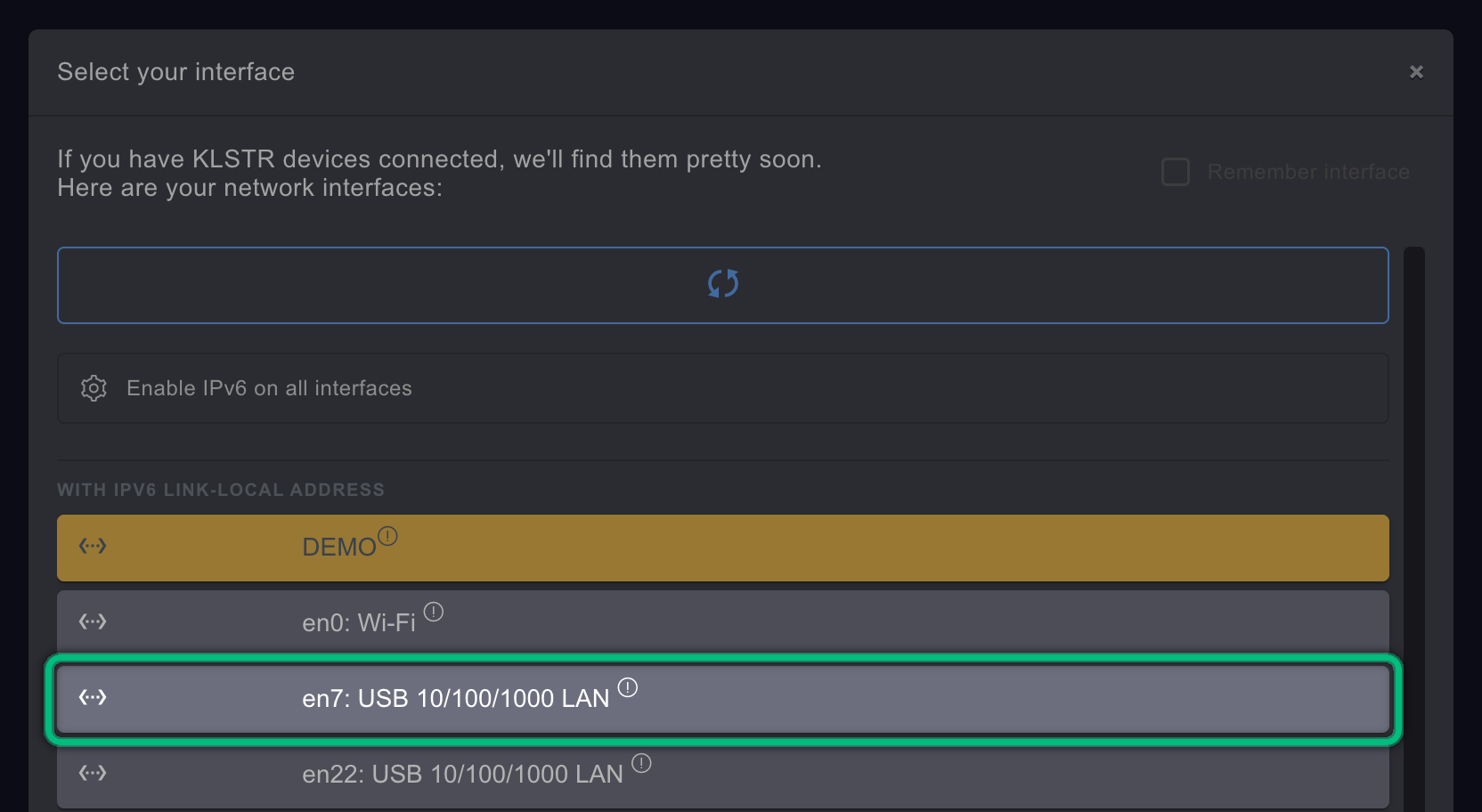
Two groups below the list are collapsed; click their heading to open them:
- Virtual interfaces: interfaces without a hardware (MAC) address, such as VPN tunnels. You rarely need them.
- No IPv6 link-local address: interfaces without the address KLSTR.one needs. They are greyed out and can't be selected.
If you plugged in an adapter after opening the dialog, click the refresh button (the round arrows at the top) to scan again.
Switch on IPv6 if your interface is missing
If your interface is under No IPv6 link-local address, click Enable IPv6 on all interfaces.
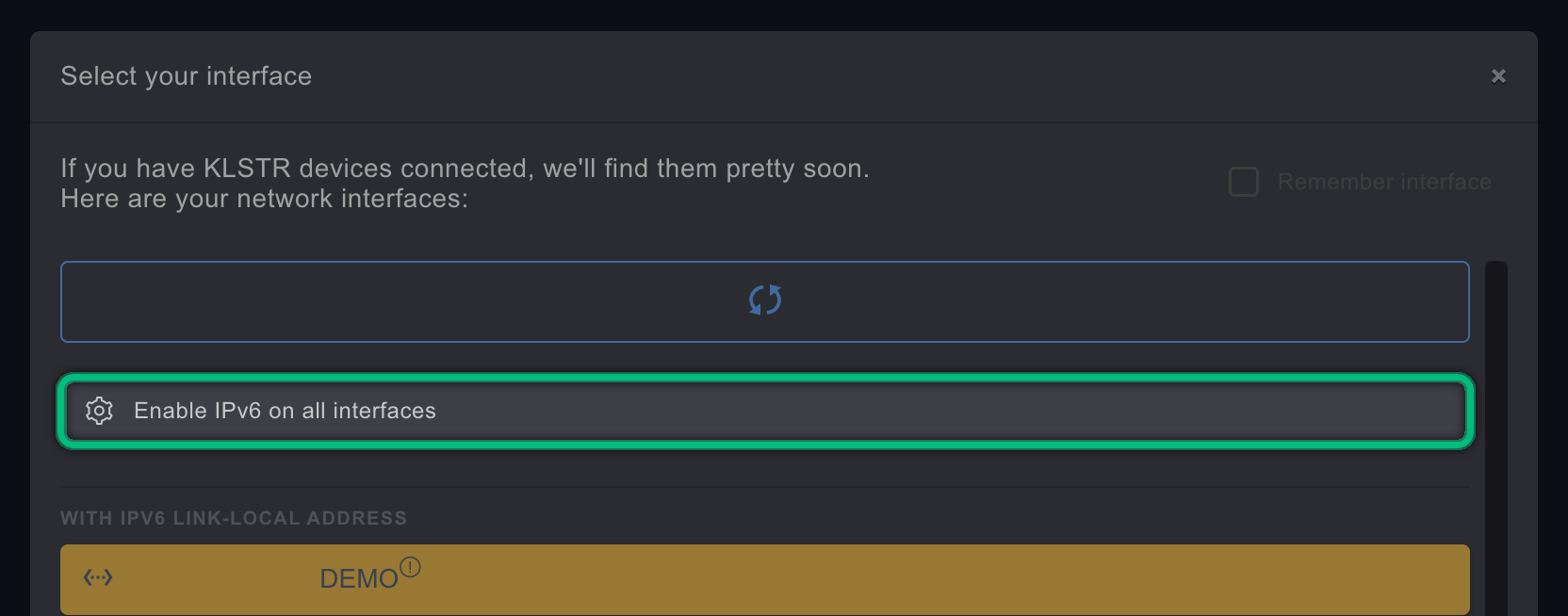
Your operating system asks for an administrator password (macOS) or for permission to make changes (Windows). KLSTR.ctrl then sets IPv6 to automatic on every network service (macOS) or switches the IPv6 protocol on for every network adapter (Windows), and scans the interfaces again. The row reads Enabling IPv6… meanwhile.
Click your interface
Click the interface the lighting network is connected to. It stays highlighted as the selected interface, and KLSTR.ctrl starts listening for KLSTR.one fixtures on it straight away.
Click KLSTR.one in the header, pick the interface, and tick Remember interface.Let KLSTR.ctrl remember it
Tick Remember interface at the top right of the dialog. Next time you start KLSTR.ctrl, it connects to this interface by itself. The checkbox is greyed out until you have selected an interface.

KLSTR.ctrl remembers the KLSTR.one interface and the Art-Net interface separately. If you pick another interface later while the box is ticked, KLSTR.ctrl remembers that one instead. Untick the box to forget the interface: KLSTR.ctrl stays connected for now, but starts without a KLSTR.one interface next time.
Close the dialog
Close the dialog with the × in its top-right corner or with Esc.
On macOS, the first time KLSTR.ctrl uses the network, macOS asks whether it may find and connect to devices on your local network. Click Allow. See Install and launch KLSTR.ctrl.
Select the Art-Net interface
The Art-Net interface dialog works the same way, with three differences: it lists the interfaces that have an IPv4 address (With IPv4 address), it has no IPv6 button, and it has two options for finding Art-Net nodes.
Open the Art-Net interface dialog
Click KLSTR.nano in the header, or choose KLSTR.nano › Select Art-Net interface (press Cmd Shift A on macOS, Ctrl Shift A on Windows). The dialog is titled Select your Art-Net interface.
Leave the two Art-Net options off
Above the list, Limited BC and Manual ArtPoll change how KLSTR.ctrl looks for Art-Net nodes. Leave both off unless you know you need them: see Discover devices.
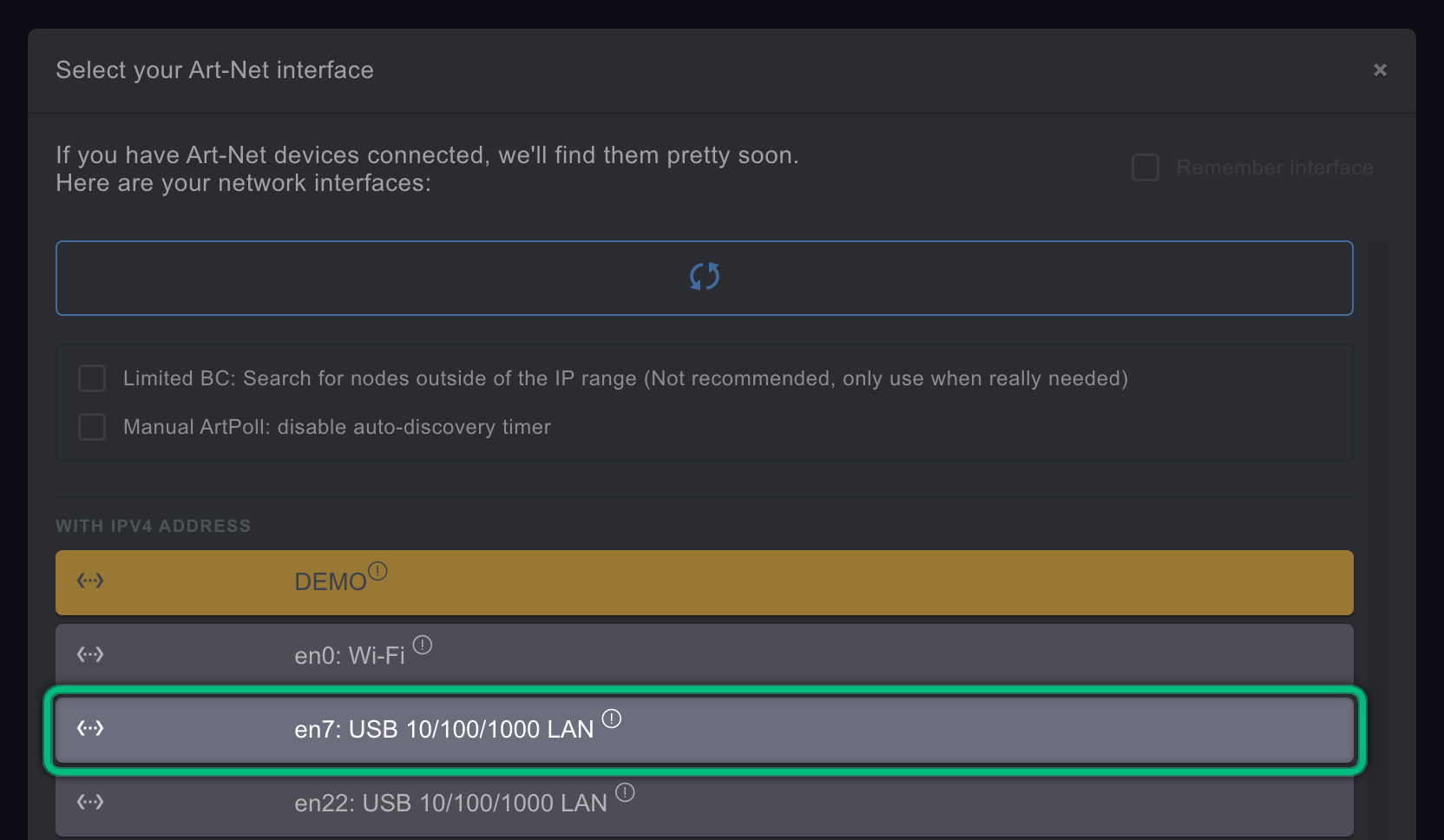
Click your interface, remember it and close the dialog
Click the interface with an IPv4 address in your nodes' range. Tick Remember interface if you want, and close the dialog.
What you should see
- In the header, the status dot next to KLSTR.one and, if you selected one, next to
KLSTR.nano turns green. Hover over the label to see the interface name and its
addresses.

- KLSTR.one fixtures appear in the Network Topology as their announcements arrive, usually within a few seconds.
- Art-Net nodes appear within a few seconds too: KLSTR.ctrl polls for them every 2.5 seconds. The RDM fixtures behind them appear after RDM discovery. See Discover devices.
The status dot shows the state of each connection:
| Dot | Meaning |
|---|---|
| Red | No interface selected |
| Orange | Interface selected but not connected: its cable is unplugged, or the link is still coming up. Also shown in demo mode |
| Green | Interface connected, and KLSTR.ctrl is listening on it |
When a cable is unplugged and plugged back in, KLSTR.ctrl reconnects to the interface by itself.
If something goes wrong
| What you see | Likely cause | What to do |
|---|---|---|
| Your interface is greyed out under No IPv6 link-local address | IPv6 is off for that interface | Click Enable IPv6 on all interfaces, or switch IPv6 on in the operating system's network settings, then click the refresh button |
| Your interface is not in the list at all | The adapter was plugged in after the dialog opened | Click the refresh button |
| Hovering an interface shows You need an IPv6 (link-local) address | The interface has no fe80:: address | As above: switch IPv6 on for it |
| Hovering an interface shows Binding to localhost/loopback is not supported. | That is a loopback interface | Pick the physical interface instead |
| The dot stays orange | The cable is unplugged or the link is down | Check the cable and the switch port. KLSTR.ctrl reconnects when the link comes up |
| A toast Local network access is blocked appears (macOS) | macOS denies KLSTR.ctrl access to the local network | See macOS blocks local network access |
| The dot is green but no KLSTR.one fixture appears | Wrong interface, or the fixtures are on another VLAN or behind a router | See Devices are not discovered |
| No Art-Net node appears | The interface's IPv4 address is in another range than the nodes, or Manual ArtPoll is on | Fix the IPv4 address, or see Discover devices |
Related
Written for KLSTR.ctrl 1.2.0 (a0df909) · Checked 1 Oct 2026