

Reference
Settings: Network
Every setting on the NETWORK tab of User settings, for the Art-Net connection to your nodes, with defaults and when to change them.
The NETWORK tab of User settings controls how KLSTR.ctrl finds and talks to Art-Net nodes, the connection the header calls KLSTR.nano. Open it with KLSTR › User Settings (press Cmd , on macOS, Ctrl ShiftU on Windows) and click NETWORK. How the window works (saving, reset, Reset All, the Advanced settings switch) is explained in Settings: View.
The Art-Net settings are read when KLSTR.ctrl opens the Art-Net connection. After you change
Use ELC-Net for ELC nodes, Manual ArtPoll, Limited BC or Workaround Art-Net
quirks here, select the Art-Net interface again with KLSTR.nano › Select Art-Net
interface (press CmdShiftA on macOS,
CtrlShiftA on Windows) to apply them. The
Limited BC and Manual ArtPoll checkboxes in that interface dialog are the same two
settings, and there they apply straight away.
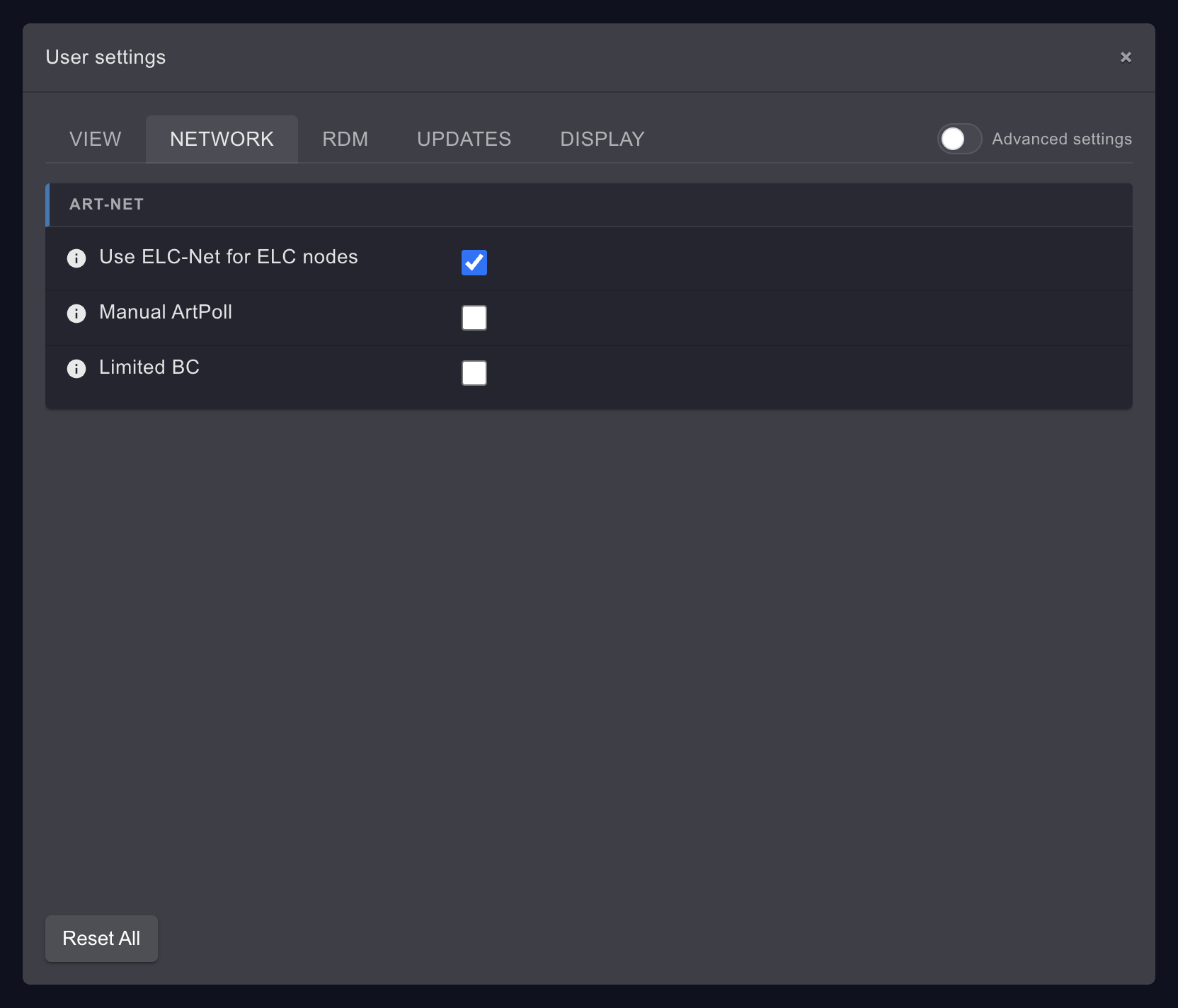
ART-NET
| Setting | What it does | Default | When to change it |
|---|---|---|---|
| Use ELC-Net for ELC nodes | Talks to ELC (dmXLAN) nodes over their own ELC-Net protocol (UDP port 6517) for RDM, instead of Art-Net's ArtTod and ArtRdm packets. Finding the nodes still uses ArtPoll | On | Switch it off only if RDM to an ELC node fails and KLSTR support asks you to try plain Art-Net RDM |
| Manual ArtPoll | Stops the automatic ArtPoll that KLSTR.ctrl sends every 2.5 s to find Art-Net nodes. A long-press Discover Art-Net button appears in the toolbar at the bottom of the topology views; hold it to poll once | Off | Switch it on when a node or another controller on the network reacts badly to regular polls, or when you want to keep network traffic down during a show. See Discover devices |
| Limited BC | Also sends ArtPoll to the limited broadcast address 255.255.255.255, so KLSTR.ctrl finds nodes whose IP address is outside the subnet of the selected interface. The Art-Net specification advises against it | Off | Switch it on briefly to find a node with an unknown or wrong IP address, then give the node a proper address and switch it off again. See Devices are not discovered |
Advanced settings
Switch on Advanced settings to see these cards.
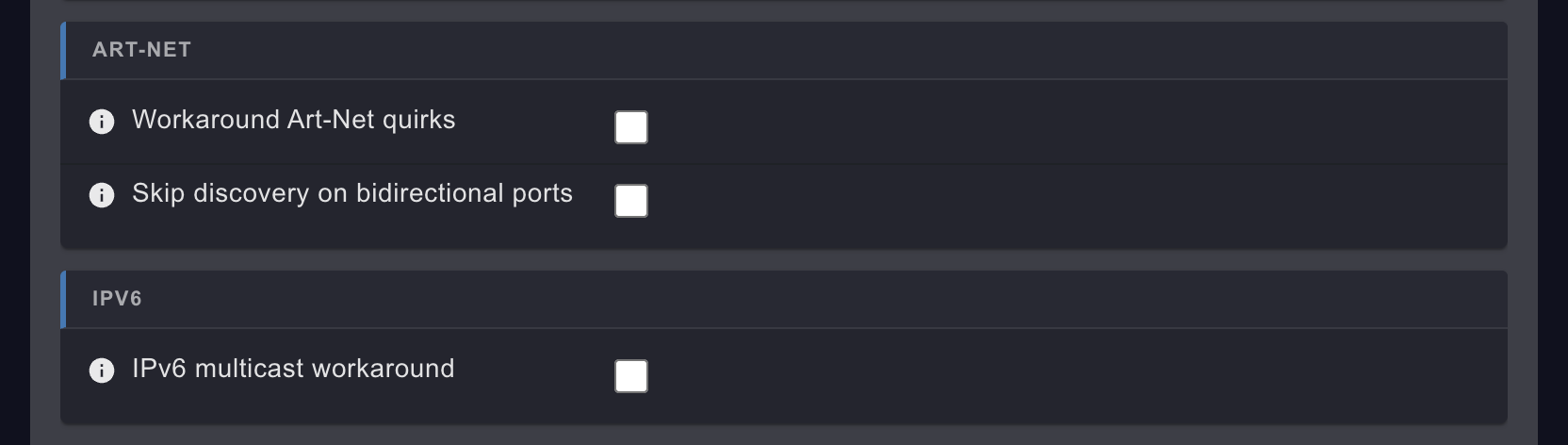
ART-NET (Advanced)
| Setting | What it does | Default | When to change it |
|---|---|---|---|
| Workaround Art-Net quirks | Works around nodes that don't follow the Art-Net specification: it treats every node as RDM-capable even when it doesn't say so, and finishes RDM discovery on a node's port even when the node's table of devices (TOD) arrives late or in pieces | Off | Switch it on when a node's fixtures never show up, or show up incomplete, while the node itself is found. Its tooltip asks for a restart of KLSTR.ctrl, but selecting the Art-Net interface again is enough (see the note above) |
| Skip discovery on bidirectional ports | Sends no RDM discovery to Art-Net ports that are set up as both input and output. Input-only ports are always skipped | Off | Switch it on when a node has ports configured as input and output and RDM discovery on them disturbs the node or reports devices that aren't there |
IPV6
| Setting | What it does | Default | When to change it |
|---|---|---|---|
| IPv6 multicast workaround | Its tooltip says it leaves and rejoins the KLSTR.one multicast group every 250 s. In this version of KLSTR.ctrl, nothing reads the setting, so it has no effect | Off | No need to change it. KLSTR.ctrl already checks its multicast connection to KLSTR.one devices by itself and rebuilds it when it stops working |
Related
Written for KLSTR.ctrl 1.2.0 (a0df909) · Checked 1 Oct 2026