

Settings: Updates
The UPDATES tab of User settings decides whether KLSTR.ctrl looks for new versions of itself, whether it downloads new device firmware ahead of time, and how much downloaded firmware it keeps. Open it with KLSTR › User Settings (press Cmd, on macOS, Ctrl Shift U on Windows) and click UPDATES. How the window works is explained in Settings: View.
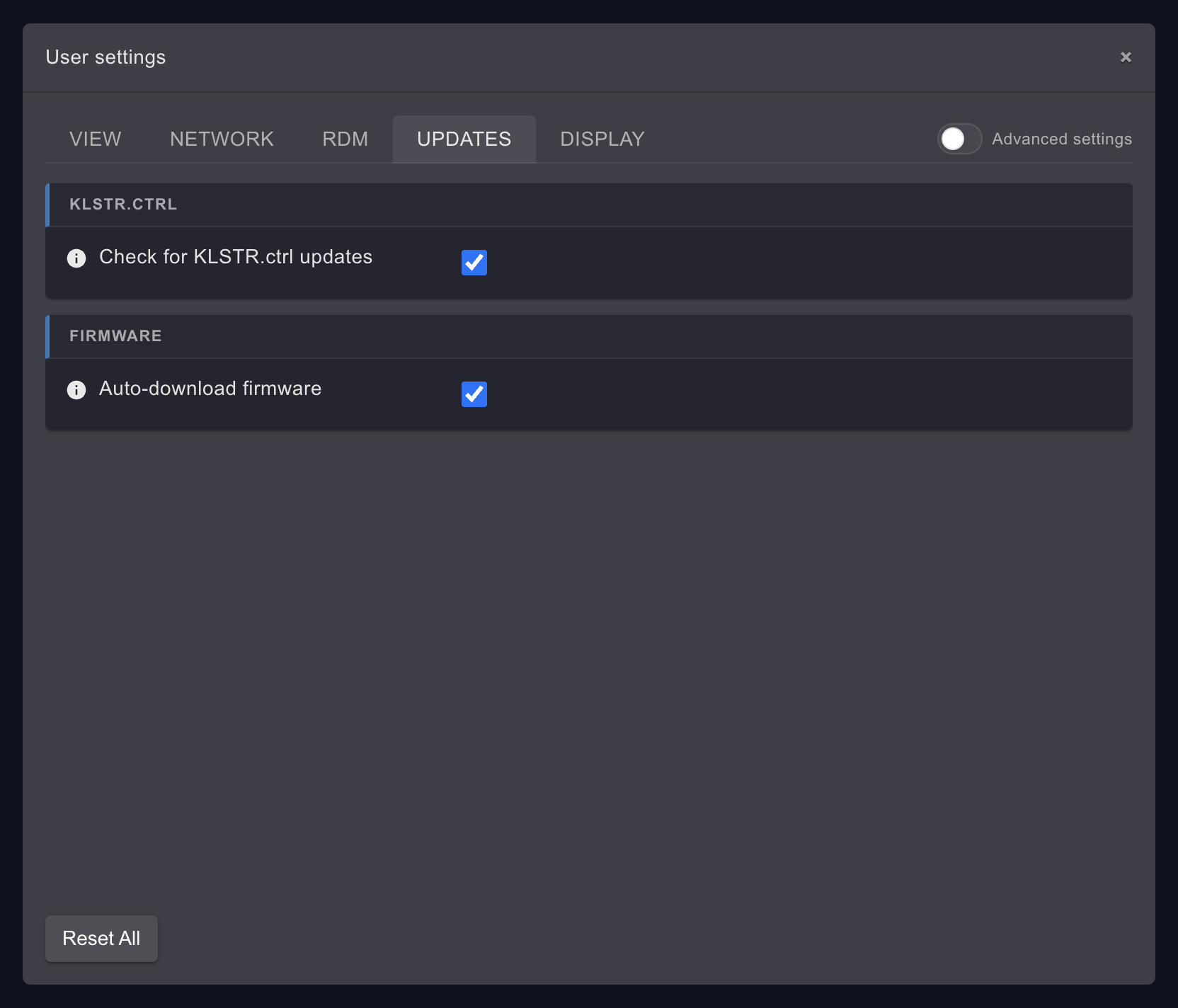
KLSTR.CTRL
| Setting | What it does | Default | When to change it |
|---|---|---|---|
| Check for KLSTR.ctrl updates | Looks for a new release of KLSTR.ctrl when it starts and then every hour, and offers to install it. Check for updates in the menu always works, whatever this setting says | On | Switch it off on a show computer that must not change version during a production, or that has no internet access. Check by hand when it suits you. See Update KLSTR.ctrl |
The setting is read before each automatic check, so switching it off stops the next hourly check without a restart.
FIRMWARE
| Setting | What it does | Default | When to change it |
|---|---|---|---|
| Auto-download firmware | When KLSTR.ctrl starts with internet access, it downloads the latest hosted KLSTR.nano firmware into the firmware cache, so you can update KLSTR.nano modules later without internet. It does the same when you open the Upgrade Nano Firmware dialog | On | Switch it off on a metered or slow connection. You can still download a release by hand with Download in the Upgrade Nano Firmware dialog. See Update KLSTR.nano firmware |
FIRMWARE CACHE (Advanced)
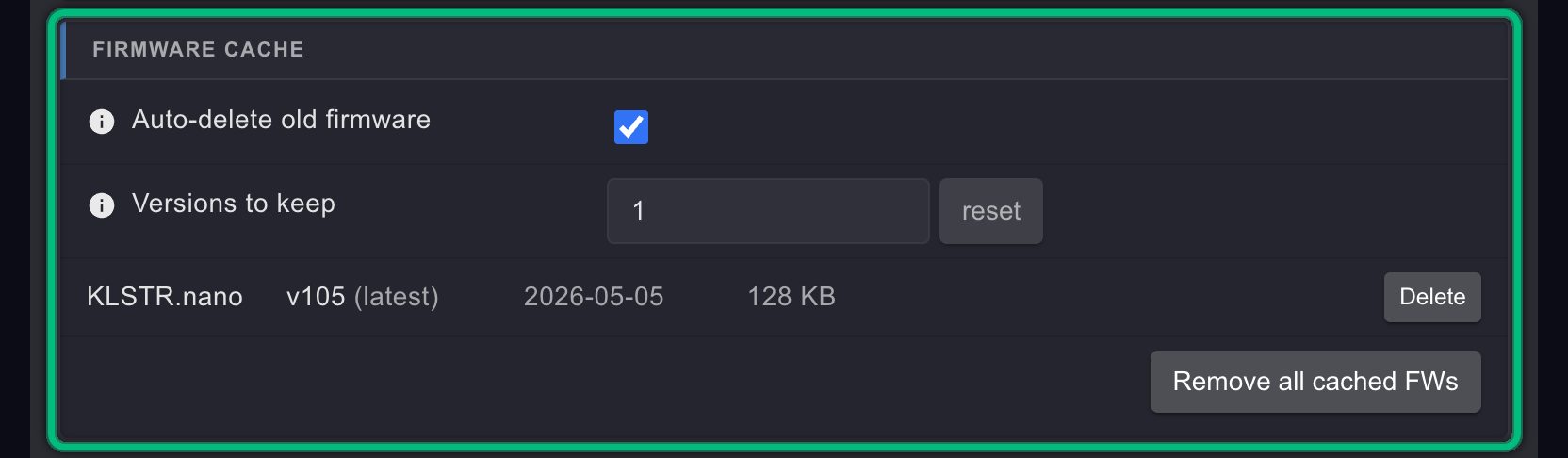
Switch on Advanced settings to see this card. It holds two settings and, below them, the list of firmware files KLSTR.ctrl has downloaded on this computer.
| Setting | What it does | Default | When to change it |
|---|---|---|---|
| Auto-delete old firmware | Deletes older cached firmware so that only the newest Versions to keep remain for each device type. It runs after a background download, as soon as you switch it on, and when you lower Versions to keep. The latest release, the version selected in an update dialog and a version being flashed are never deleted | On | Switch it off when you want to keep older firmware at hand, for example to put a fixture back on the version the rest of the rig runs |
| Versions to keep | How many of the newest cached versions auto-delete keeps per device type. It is greyed out while Auto-delete old firmware is off. Values below 1 count as 1 | 1 | Raise it to keep a fallback version next to the latest one |
Each row of the list shows the device type (KLSTR.nano, the only firmware KLSTR.ctrl downloads), the version, with (latest) after the newest hosted release, its release date and its size, and a Delete button. A version that is being flashed right now can't be deleted. When nothing is cached, the list reads No cached firmware. Remove all cached FWs asks you to confirm with Remove and then empties the cache. Firmware files you pick from disk in an update dialog are used where they are and never appear here. See Manage the firmware cache.
Related
Written for KLSTR.ctrl 1.2.0 (a0df909) · Checked 1 Oct 2026
Settings: RDM
Every setting on the RDM tab of User settings, for discovering and polling RDM fixtures behind Art-Net nodes, with defaults and when to change them.
Settings: Display
The DISPLAY tab of User settings, where you choose what the device and port boxes show, with the shipped defaults, template placeholders and custom RDM PIDs.