

Change RDM IP settings
This page is an annex: KLSTR.ctrl offers RDM IP settings only on fixtures that implement the IP configuration PIDs of ANSI E1.37-2 (LIST_INTERFACES, IPV4_DHCP_MODE, IPV4_ZEROCONF_MODE, IPV4_STATIC_ADDRESS and the routing and DNS PIDs). Few fixtures do. Of the fixtures KLSTR.ctrl has recorded RDM data for, only Ayrton fixtures (the Veloce, for example) report them.
A fixture that implements them, usually a networked fixture behind an Art-Net node, gets a Network tab in its Device Configuration window. KLSTR.ctrl shows one block per network interface the fixture reports, plus the fixture-wide routing and DNS settings.
This is not how you set up a KLSTR.one: KLSTR.ctrl reaches a KLSTR.one over IPv6 link-local without any IP plan. See IPv6 zeroconf networking.
Set a static address when the rig runs on a fixed IP plan, use DHCP when a server hands out the addresses, and use Zeroconf when the fixture must fall back to a 169.254.x.x address on its own. (This Zeroconf switch is the IPv4 fallback of E1.37-2. It has nothing to do with the IPv6 link-local addressing of a KLSTR.one.)
Before you start
- Art-Net interface selected and RDM discovery done, and the fixture has a Network tab. A fixture that doesn't report LIST_INTERFACES has none. See Discover devices.
- Build mode. In Live mode the IP settings are read-only. See Switch between Build and Live mode.
- Your IP plan: address, prefix length or netmask, gateway and DNS servers for each fixture.
Change the IP settings
Open the Network tab
Open the device's configuration (click the cog, Device settings, on the fixture in the topology, or right-click it) and click Network in the sidebar.
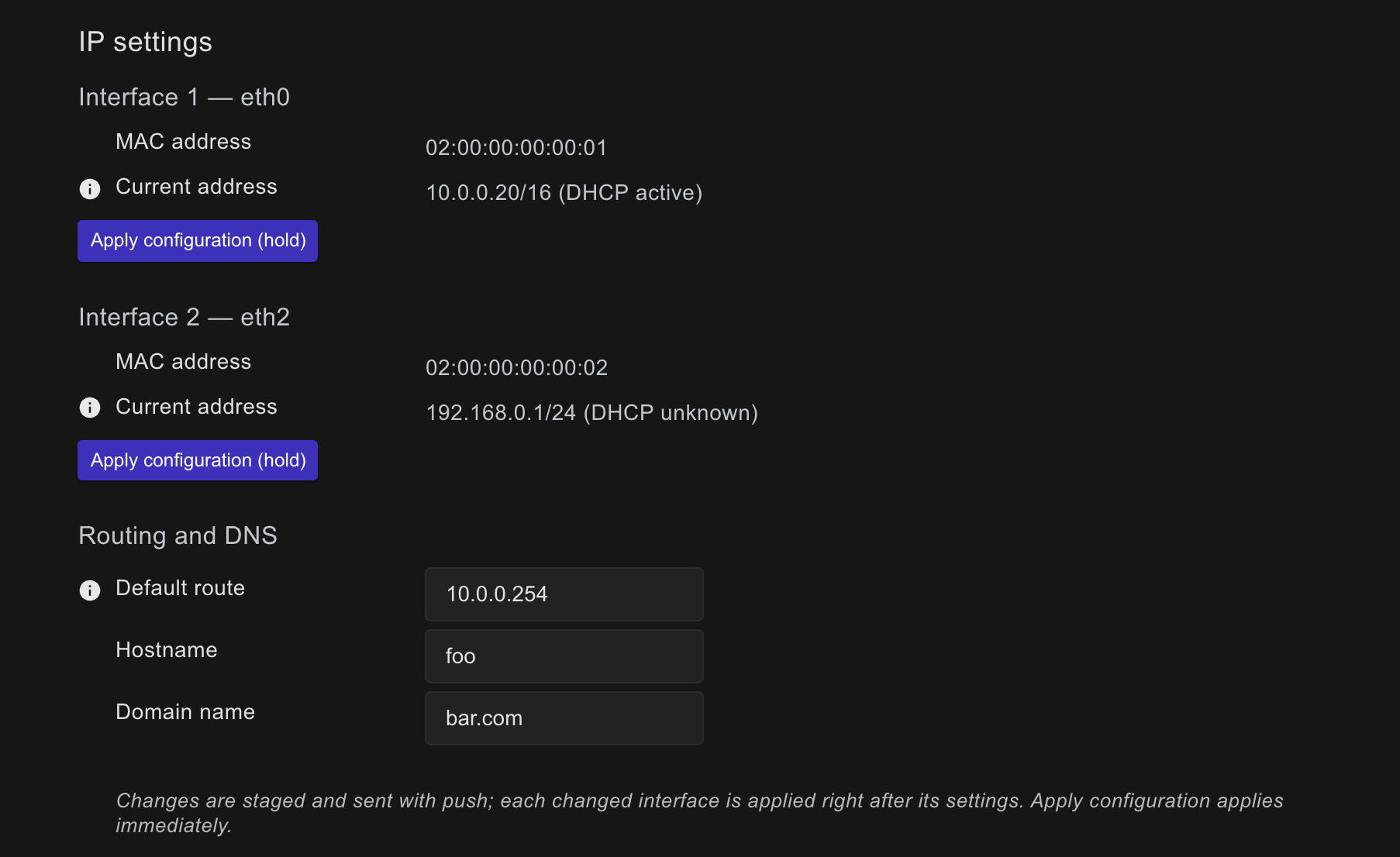
The IP settings card shows a block per interface, titled Interface with its number and name, with the interface's MAC address and its Current address (address and prefix length, followed by the DHCP state when the device reports one). Below the interfaces, Routing and DNS holds the settings that apply to the whole device.
Choose how the interface gets its address
Each switch below only appears when the device supports it.
Switch on DHCP to get the address from a DHCP server.
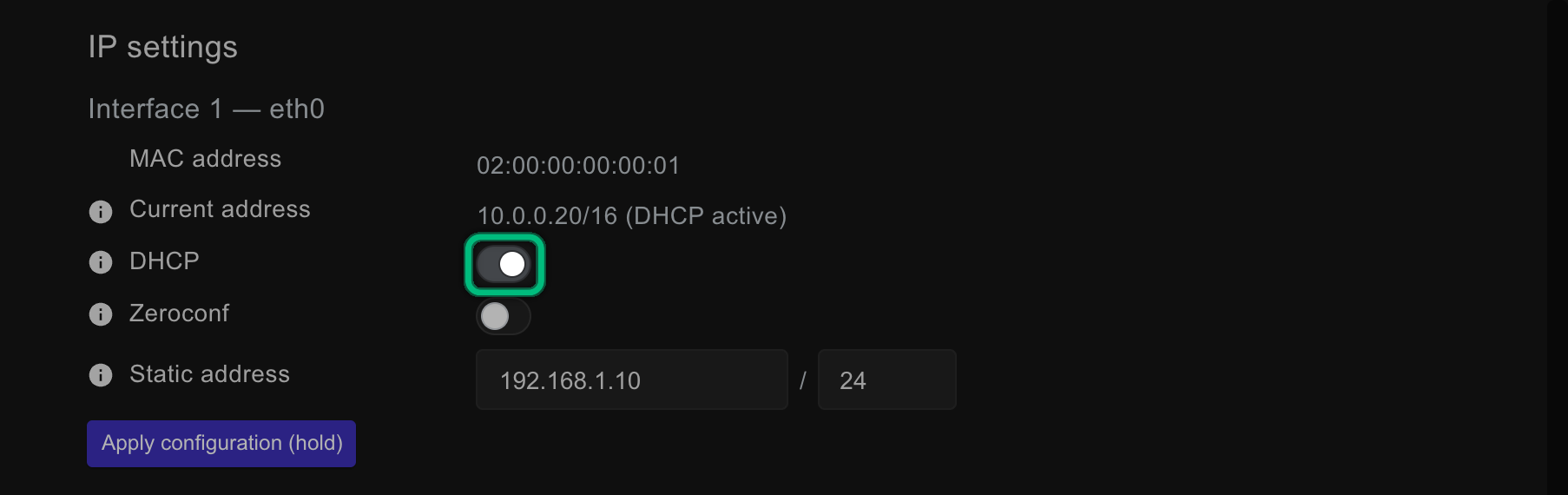
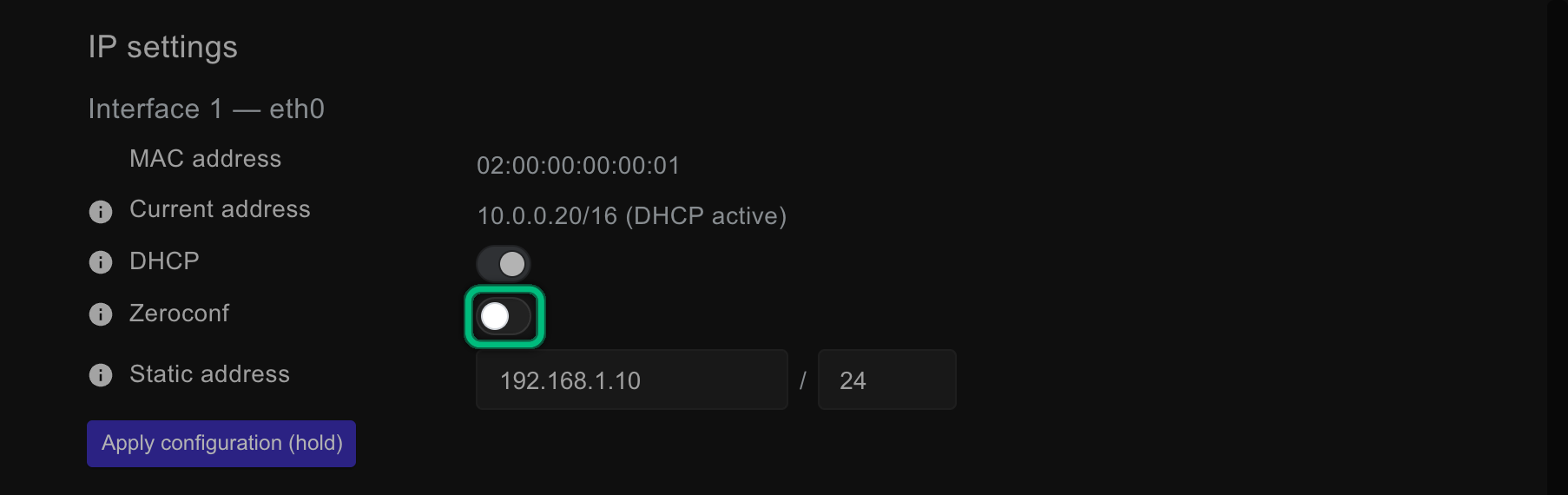
Switch on Zeroconf to let the interface fall back to a link-local 169.254.x.x address when no other address is available.
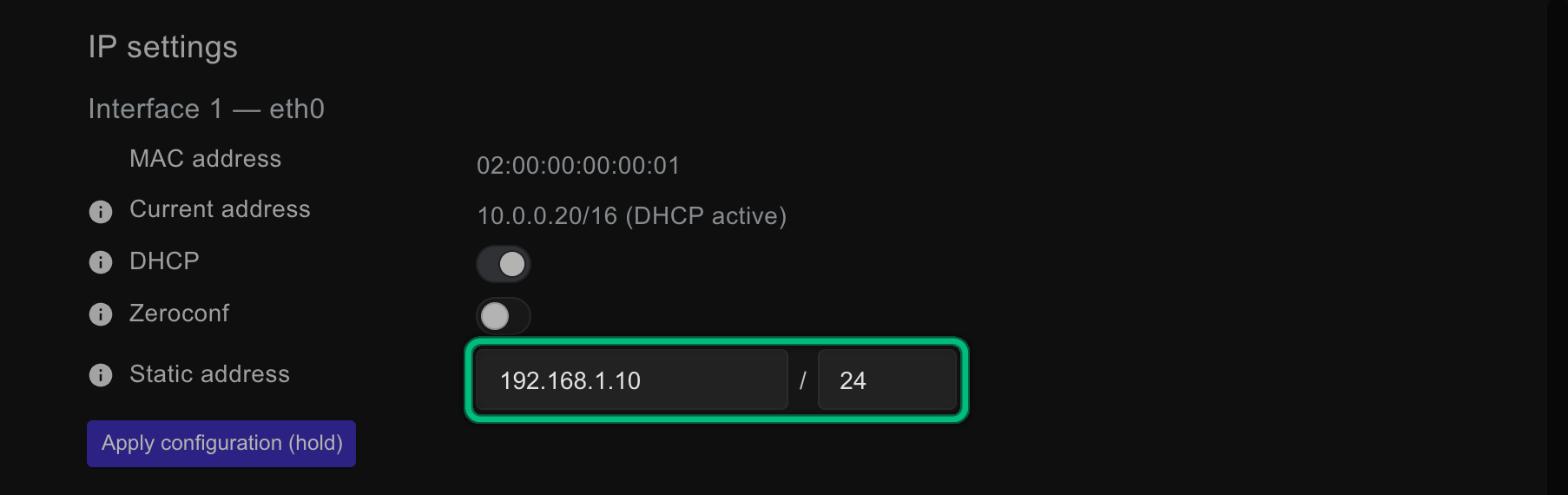
For a fixed address, switch DHCP off and type the address and the prefix length in
Static address, for example 192.168.1.10 / 24 (prefix 24 is netmask 255.255.255.0;
hover the label to see the netmask for the prefix you typed). A field with an incomplete
address turns red and is not staged.
Set the routing and DNS
In Routing and DNS, type the gateway in Default route (0.0.0.0 means no default
route), the name servers in DNS server 1 to DNS server 3, and the Hostname and
Domain name. The device reports which of these it supports; the others are not shown.

Push the changes
Changes in this card are staged, not sent: push at the bottom of the sidebar lights up as soon as one is waiting. Click push. KLSTR.ctrl sends the device-wide settings first, then for each interface you changed its settings followed by an apply, so the interface switches to them straight away. It stops at the first setting the device refuses.
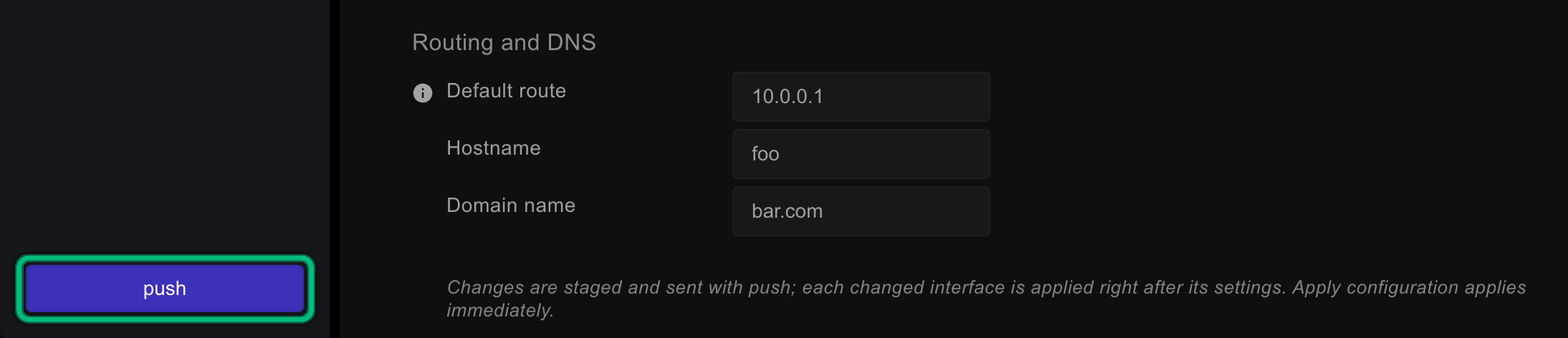
The line below the card reads Last result: with the last setting sent and OK, or failed (see log).
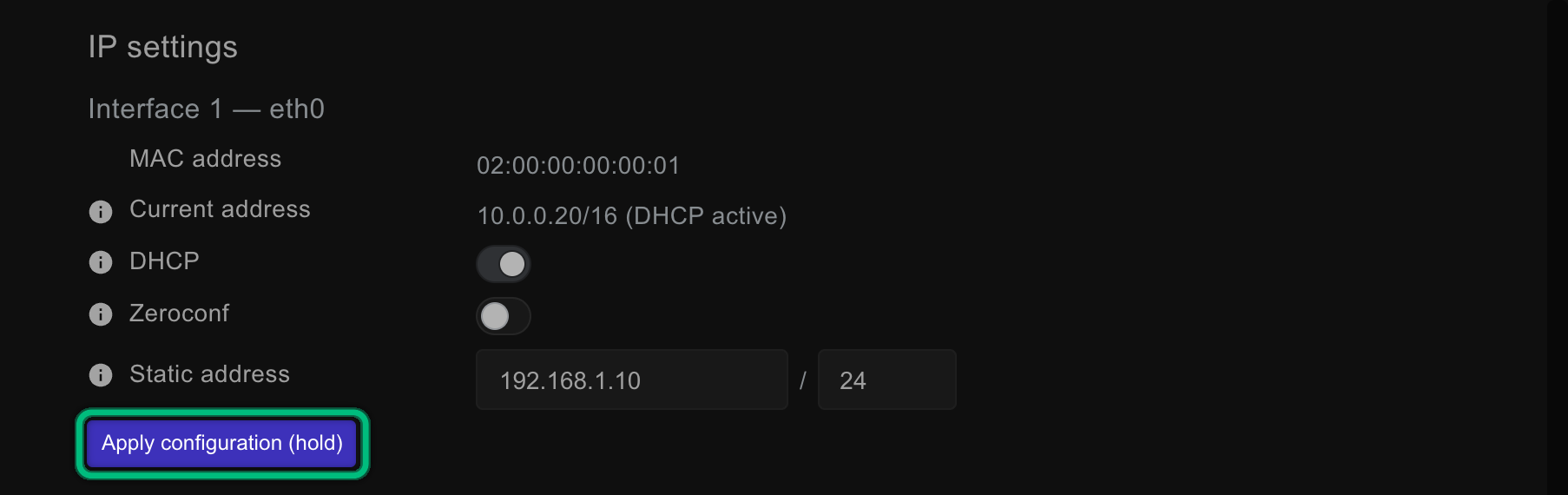
You don't need Apply configuration (hold) after a push. It tells the interface to switch to the settings already stored on the device, without sending anything you staged in the window, and it acts as soon as you have held it for one second. Use it when a device holds new settings but hasn't switched to them yet.
Renew or release the DHCP lease (optional)
When the device supports it, the interface block also has Renew DHCP, which asks the DHCP server for the lease again, and Release DHCP (hold), which gives the lease back. Hold Release DHCP (hold) for one second. Both act at once: they don't wait for push.
What you should see
- After push, Current address shows the new address once KLSTR.ctrl has read it back, and Last result: reads OK.
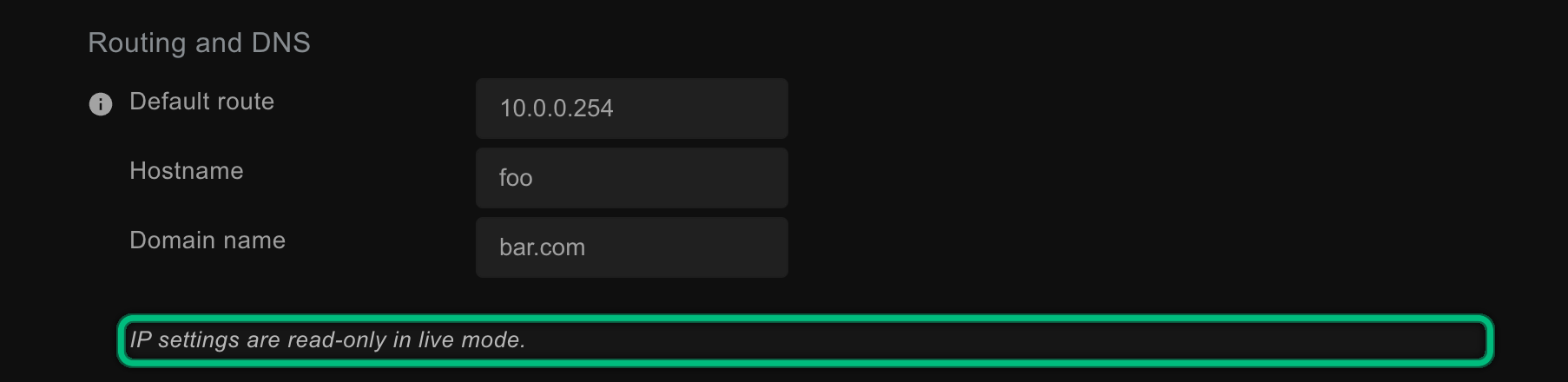
- In Live mode, the IP settings are dimmed, and the line below them reads IP settings are read-only in live mode.
If something goes wrong
| What you see | Likely cause | What to do |
|---|---|---|
| No Network tab on a fixture | The device doesn't support E1.37-2 IP configuration (no LIST_INTERFACES) | Use the manufacturer's tool or web interface |
| The fields are dimmed and IP settings are read-only in live mode. | KLSTR.ctrl is in Live mode | Switch to Build mode |
| An address field turns red | The address is incomplete or not a valid IPv4 address. A red field is not staged | Type all four parts, for example 10.0.1.20 |
| push stays dimmed | Nothing is staged | Change a value; a field that matches the device's value is not staged |
| Last result: failed (see log) | The device refused a setting (an RDM SET NACK in the log) or didn't answer. KLSTR.ctrl stops at that setting, so the ones after it were not sent | Read the log, correct the value and push again |
| The device disappears after the change | It restarted to apply the settings, or the new address is outside your network | Wait for it to come back. If it doesn't, check the address plan and the device's own menu |
Related
Written for KLSTR.ctrl 1.2.0 (a0df909) · Checked 1 Oct 2026